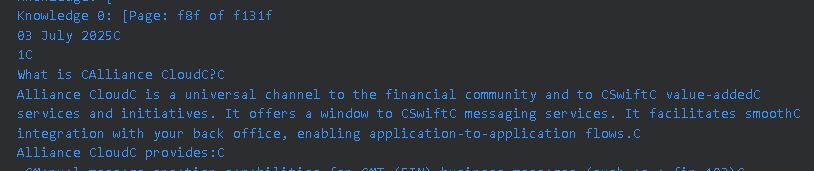
@hustledustle Hi, I followed the PDF you provided and ran the latest version of Casibase for debugging — everything worked fine. There was no case of text being “wrapped by C,” and more importantly, I couldn’t find any content in the parsed result that matches the text shown in your screenshot. Could you please confirm whether the PDF you shared is the same one where the issue occurred? I’ve saved the parsed result from Casibase in a TXT file for your reference.
issue.txt:
Page: 1 of 12
Alliance Cloud
Alliance Cloud Connectors
Release Letter
MQ Connector 1.0
This document contains release information for�the Alliance
Cloud MQ Connector 1.0.
18 April 2025
Link to this document: https://www2.swift.com/go/book/book202218
Alliance Cloud
Alliance Cloud
Connectors
Table of Contents
Release Letter
Page: 2 of 12
18 April 2025
Table of Contents
Practical Information3
1 Release Overview4
1.1 Software Distribution4
1.2 Documentation4
1.3 System Requirements5
2 New MQ Connector 1.0 Installation7
2.1 Prepare for Installation7
2.2 Install MQ Connector 1.0 Interactively (New Installation)7
Legal Notices12
Alliance Cloud
Alliance Cloud
Connectors
Practical Information
Release Letter
Page: 3 of 12
18 April 2025
Practical Information
Information about release 1.0
Installation typeMandatory
Operating system requirementsSee Operating System Requirements for Release 1.0 on page 5.
Customer installation path (new
installation)
1.0
Product dependenciesSwift Microgateway
See "Alliance Cloud MQ Connector Installation Tasks " in Alliance Cloud
Getting Started.
Operating systemsAvailable on RHEL and Windows
Alliance Cloud
Alliance Cloud
Connectors
Release Overview
Release Letter
Page: 4 of 12
18 April 2025
1 Release Overview
The MQ Connector 1.0 for Alliance Cloud is now available.
This release must be installed as a fresh installation. You can install the MQ Connector using an
interactive installation wizard.
The Alliance Cloud MQ Connector enables customers to set up IBM MQ queues to exchange
FIN and InterAct messages with Alliance Cloud.
1.1 Software Distribution
This release of the MQ Connector for Alliance Cloud is available on the Download Centre.
1.1.1 Validating Downloads from the Swift Download Centre
For all software products that are available for download on the Swift Download Centre,
Swift publishes security information that enables customers to verify the data integrity of the
downloaded product.
For more information about the security mechanism used for this validation, see Knowledge
Base article 5021288.
1.2 Documentation
This topic lists the documentation and additional resources for the MQ Connector for Alliance
Cloud.
The Alliance Cloud documentation set includes the following publications:
•Alliance Cloud Getting Started
•Alliance Cloud Message Management User Guide
•Alliance Cloud Operations Guide
•Alliance Cloud Service Description
Updated documentation is available online
The latest version of the documentation is available on the Knowledge Centre (User Handbook).
We recommend that you check the What's New section of the Knowledge Centre (User
Handbook) to be informed about new or updated documentation.
Feedback about documentation
Swift is committed to continuously improve the documentation for our products, software, and
services. We welcome your comments about the documentation. You can provide comments
by e-mail to ***@swift.com.
Additional resources online
These resources are also available for you through the MySwift portal.
•Knowledge base - Search for solutions to known problems and answers to frequently asked
questions.
•How-to videos - View short 2-3 minute videos about how to accomplish a task.
Alliance Cloud
Alliance Cloud
Connectors
Release Overview
Release Letter
Page: 5 of 12
18 April 2025
•Basic Troubleshooting Guide - Recommendations and guidelines for how you can
troubleshoot the Swift environment.
•Case Manager - Report a case and view your current cases.
1.3
System Requirements
1.3.1
Operating
System
Requirements
for
Release
1.0
The
MQ
Connector
for
Alliance
Cloud
has
been
qualified
against
the
English
language
version
of
the
following
operating
systems.
Swift
provides
support
for
higher
versions
of
these
operating
systems.
For
more
information,
see
Knowledge
Base
article
1212959.
Operating systemSupport version
LinuxRed Hat Enterprise Linux 8
WindowsWindows Server 2022
Windows Server 2019
Note
Use of personal tokens will be supported on Windows in a later release of the MQ
Connector.
1.3.2 Processor Speed and Memory Requirements
The processor speed must be 3GHz or faster.
You need 16 GB of memory (RAM) free after operating system utilisation.
1.3.3 Web Browser Configuration
The MQ Connector Graphical User Interface (GUI) has been qualified using the English language
version of the following browsers:
•Google Chrome
•Microsoft Edge
•Mozilla Firefox
Swift no longer recommends the use of Internet Explorer.
BrowserRecommended browser versionTested on OS
Google Chrome130.0.6723.59 or higherWindows
Microsoft Edge (Chromium)130.0.2849.80 or higherWindows
Mozilla Firefox131.0.3 or higherWindows and RHEL
1.3.4 Disk Space Requirements
The MQ Connector for Alliance Cloud requires the following minimum disk space:
•The MQ Connector requires 2�GB of free disk space to install. This includes the size of the
installer file and the space required to install it.
Alliance Cloud
Alliance Cloud
Connectors
Release Overview
Release Letter
Page: 6 of 12
18 April 2025
•Additionally, 5�GB of free disk space is required for the log, audit, and trace files (each type
of file taking up to 1�GB of space).
Alliance Cloud
Alliance Cloud
Connectors
New MQ Connector 1.0 Installation
Release Letter
Page: 7 of 12
18 April 2025
2 New MQ Connector 1.0 Installation
2.1 Prepare for Installation
Before installing the MQ Connector, ensure that you have completed the tasks described in this
chapter.
2.1.1 Prepare Release Software for Installation
Before you begin
Read the Disk Space Requirements.
Procedure
1.Navigate to the Download Centre on www.swift.com.
2.Download the appropriate file for your operating system:
•alc_connectors_1_0_0_rhel.tar
•alc_connectors_1_0_0_win64.zip
3.Copy the appropriate file to the parent directory where the MQ Connector will create its
subdirectory.
•alc_connectors_1_0_0_rhel.tar
•alc_connectors_1_0_0_win64.zip
4.Extract the appropriate installer: alc_connectors_1_0_0_rhel.bin or
alc_connectors_1_0_0_win64.exe. Use the correct tool to ensure that the contents of
the file remains intact. Delete the archive file.
5.Make sure that the user who installs the MQ Connector has full permissions on all of the
extracted files.
2.1.2 Port Availability
You must ensure that a port is available before you install the MQ Connector.
Port numberDescription
8443Default HTTPS port used by the reference flows of the Web service server when
configured for HTTPS
2.2 Install MQ Connector 1.0 Interactively (New
Installation)
The system administrator installs the MQ Connector alongside the Swift Microgateway. The MQ
Connector administrator is a different person who performs the Alliance Cloud MQ Connector
configuration-related tasks.
Ideally, the MQ Connector administrator will be with you during the installation.
Before you begin
•Review the System Requirements on page 5.
•Prepare for Installation on page 7.
Alliance Cloud
Alliance Cloud
Connectors
New MQ Connector 1.0 Installation
Release Letter
Page: 8 of 12
18 April 2025
•The system administrator who installs MQ Connector must have the same privileges needed
for installation of the Swift Microgateway. During installation, the user who installs the MQ
Connector initialises interactively the administrator password, which will be used to execute
specific actions on the MQ Connector and to log in to the MQ Connector GUI (graphical user
interface).
•The administrator must have full file access permissions to the MQ Connector directory.
Procedure
1.Do one of the following:
ChoiceOption
On Windows
Double-click the alc_connectors_1_0_0_win64.exe.
On RHEL
Execute the alc_connectors_1_0_0_rhel.bin.
2.
In the Welcome window, click Next.
3.Read then accept the terms, and click Next.
Alliance Cloud
Alliance Cloud
Connectors
New MQ Connector 1.0 Installation
Release Letter
Page: 9 of 12
18 April 2025
4.Specify the directory name and path where the MQ Connector will be installed then click
Next.
You can either accept the default path, or click Browse to select another path.
If you select another path, then note the following conventions:
•Do not use spaces in the path name.
•Do not specify a symbolic link. You must type the full physical path.
•Use a directory that is dedicated to this product.
•The OS owner will be set by default to the user performing the installation.
5.
In the Define an administrator password window, type the initial MQ Connector
administrator password.
The password must comply with the criteria displayed on the following screen.
Alliance Cloud
Alliance Cloud
Connectors
New MQ Connector 1.0 Installation
Release Letter
Page: 10 of 12
18 April 2025
6.Define the port and the Web GUI Listener IP and click Next.
7.In the�Swift Microgateway configuration�screen, type the port, the configuration key, the
monitoring key, and the management key of the Swift Microgateway (API server). Click
Next.
8.In the Installation summary window, click Install.
Alliance Cloud
Alliance Cloud
Connectors
New MQ Connector 1.0 Installation
Release Letter
Page: 11 of 12
18 April 2025
9.In the Installation Complete window, click Finish.
What to do next
1.Provide the MQ Connector administrator with the MQ Connector administrator password
that you initialised during installation. The MQ Connector administrator needs this password
to log in to the MQ Connector GUI.
2.The MQ Connector administrator must make sure that the "Prerequisites for the MQ
Connector administrator " in Alliance Cloud Getting Started have been implemented.
3.The MQ Connector administrator must log in to and configure the GUI. See "Configuring
the MQ Connector GUI" in the Alliance Cloud Operations Guide. Online help is also available
after login.
Alliance Cloud
Alliance Cloud
Connectors
Legal Notices
Release Letter
Page: 12 of 12
18 April 2025
Legal Notices
Copyright
Swift © 2025. All rights reserved.
Restricted Distribution
Do not distribute this publication outside your organisation unless your subscription or order
expressly grants you that right, in which case ensure you comply with any other applicable
conditions.
Disclaimer
The information in this publication may change from time to time. You must always refer to the
latest available version.
Translations
The English version of Swift documentation is the only official and binding version.
Trademarks
Swift is the trade name of S.W.I.F.T. SC. The following are registered trademarks of Swift:
3SKey, Innotribe, MyStandards, Sibos, Swift, SwiftNet, Swift Institute, the Standards Forum logo,
the Swift logo, Swift GPI with logo, the Swift GPI logo, and UETR. Other product, service, or
company names in this publication are trade names, trademarks, or registered trademarks of
their respective owners.